
To check the RAM and processor on your computer, follow these steps based on your operating system:
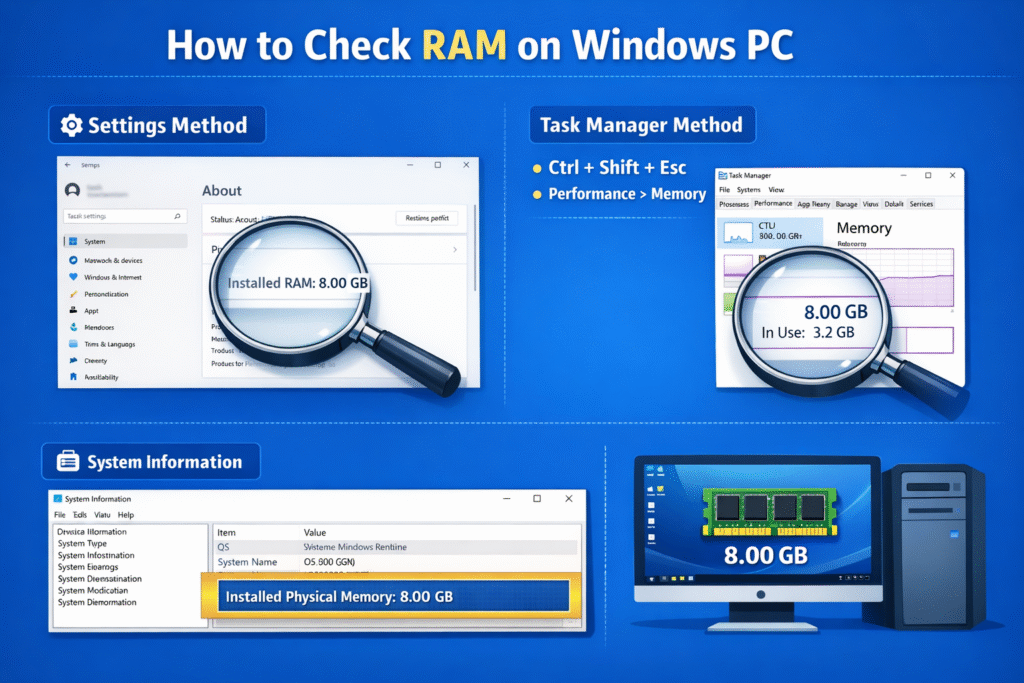
Windows 10 & 11
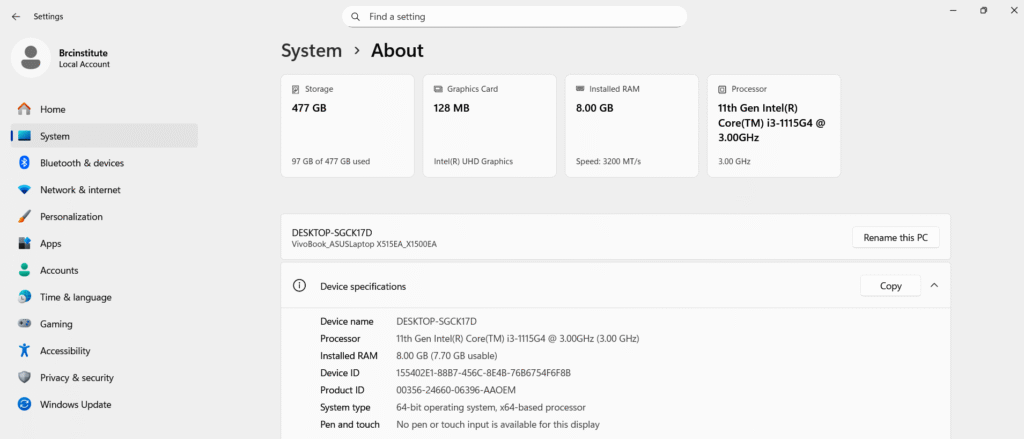
- Via Settings (Quickest): Click the Start button, select Settings (gear icon), then go to System > About. You will find your processor model and the amount of installed RAM under the "Device specifications" section.
- Via Task Manager (Real-time Usage) : Press Ctrl + Shift + Esc , then click the Performance tab.
- Click CPU to see your processor's name, speed, and core count.
- Click Memory to see your total RAM, its speed (MHz), and how many slots are used.
- Via System Information (Detailed): Press Windows + R, type msinfo32, and hit Enter. This provides a comprehensive summary of your hardware, including your BIOS version and physical memory.
macOS
- About This Mac: Click the Apple icon in the top-left corner and select About This Mac. The overview window will immediately display your processor (or chip name for Apple Silicon) and the amount of memory.
- Activity Monitor: For real-time usage, open Activity Monitor (via Spotlight or Applications > Utilities) and click the Memory tab.
Linux
- Via Terminal: Open the terminal (Ctrl + Alt + T) and type lscpu to see processor details or free -m to view RAM in megabytes.
- Alternative: Type cat /proc/cpuinfo for a deep dive into your processor's architecture.
Third-Party Tools (For Advanced Info)
If you need technical details like the RAM manufacturer or specific model numbers, use free tools like:
How Much RAM Do You Need?
| RAM Size | Best For |
|---|---|
| 4 GB | Basic browsing and office work |
| 8 GB | Daily use, multitasking |
| 16 GB | Gaming, video editing, design |
| 32 GB+ | Professional and heavy workload |
Conclusion
Checking how much RAM you have on Windows PC or Mac is quick and easy. Knowing your RAM helps you decide whether your system can handle new software, games, or multitasking needs. If your system feels slow, upgrading RAM can significantly improve performance.