

Screen recording lets you capture your computer screen with or without audio. You can use it for tutorials, online classes, presentations, gaming, or problem explanations.
🖥️ On Windows Computer
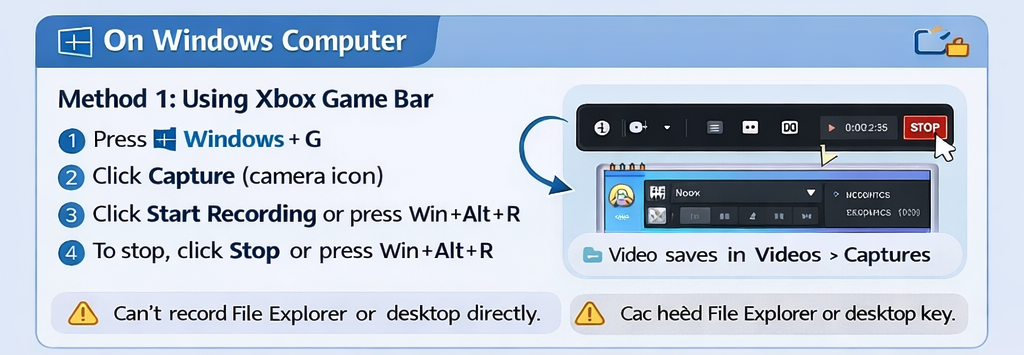
Method 1: Using Xbox Game Bar (Built-in)
✅ Best for quick screen recording
Steps:
- Press Windows + G
- Click Capture (camera icon)
- Click Start Recording or press Windows + Alt + R
- To stop, click Stop or press Windows + Alt + R
📁 Video saves automatically in: Videos > Captures
⚠️ Note: Doesn’t record File Explorer or desktop directly.
Method 2: Using OBS Studio (Free Software)
✅ Best for professional recording
Steps:
- Download OBS Studio
- Open OBS → Click + under Sources
- Select Display Capture
- Click Start Recording
- Click Stop Recording when done
📌 Supports microphone, system sound, webcam, and high quality.
🍎 On Mac Computer
Method 1: Using Screenshot Toolbar
Steps:
- Press Command (⌘) + Shift + 5
- Select Record Entire Screen or Record Selected Portion
- Click Record
- Press Stop from the menu bar
📁 Saved automatically on Desktop.
Method 2: Using QuickTime Player
- Open QuickTime Player
- Click File > New Screen Recording
- Click Record
- Click Stop to save
🌐Online Screen Recorder (No Install)
Good for quick tasks:
⚠️ Needs internet connection.
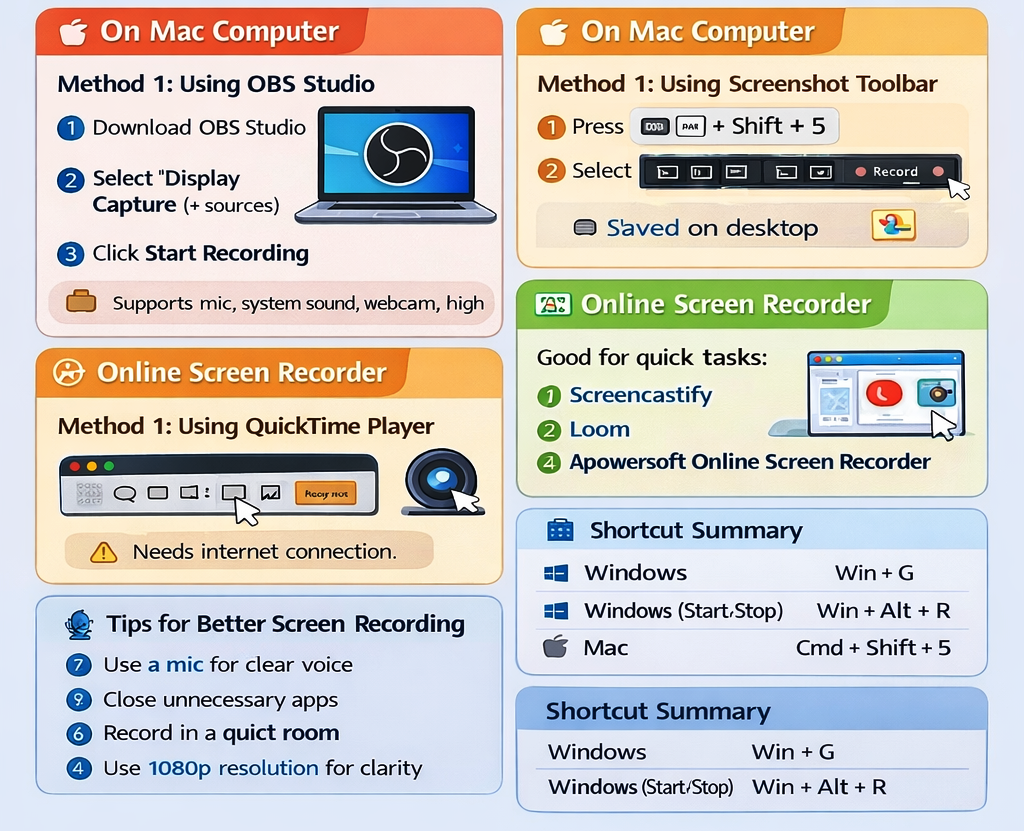
🎤 Tips for Better Screen Recording