
Sure—here are quick ways to check the OS version for Windows, macOS, and Linux. Pick the one that matches your computer.
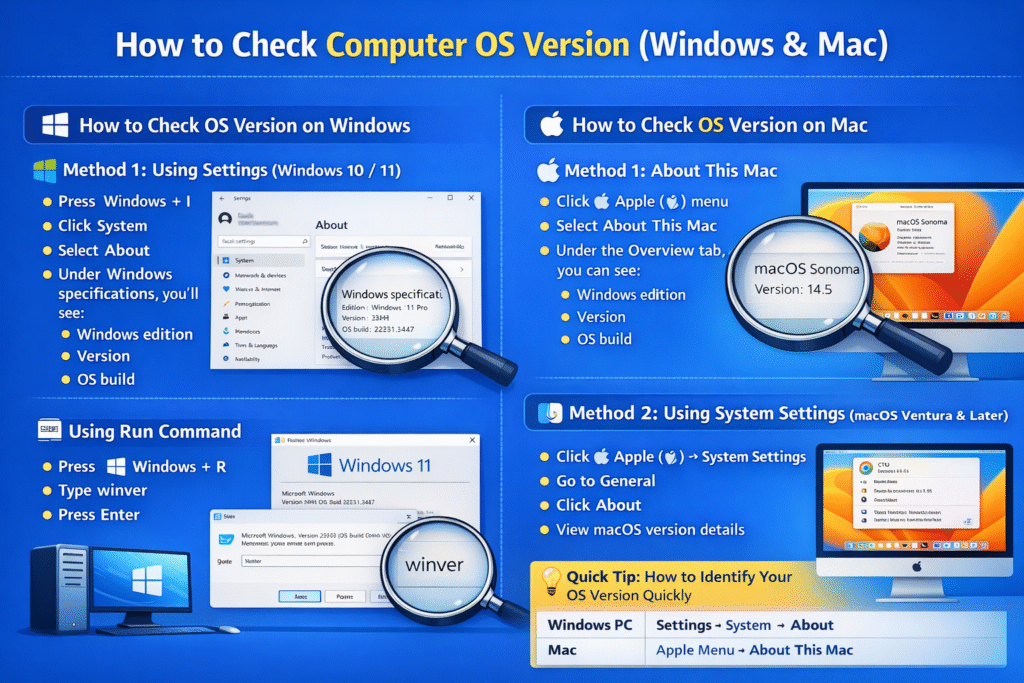
How to Check OS Version on Windows
Method 1: Using Settings (Windows 10 / 11)
- Press Windows + I to open Settings
- Click System
- Select About
- Under Windows specifications, you will see:
- Windows edition
- Version
- OS build
Method 2: Using Run Command
- Press Windows + R
- Type winver
- Press Enter
A window will appear showing your Windows OS version and build number.
Method 3: Using System Information
- Press Windows + R
- Type msinfo32
- Press Enter
Check OS Name and Version under System Summary.
How to Check OS Version on Mac
Method 1: About This Mac
- Click the Apple () menu
- Select About This Mac
- Under the Overview tab, you can see:
- macOS name
- Version number
Method 2: Using System Settings (macOS Ventura & Later)
- Click Apple () → System Settings
- Go to General
- Click About
- View macOS version details
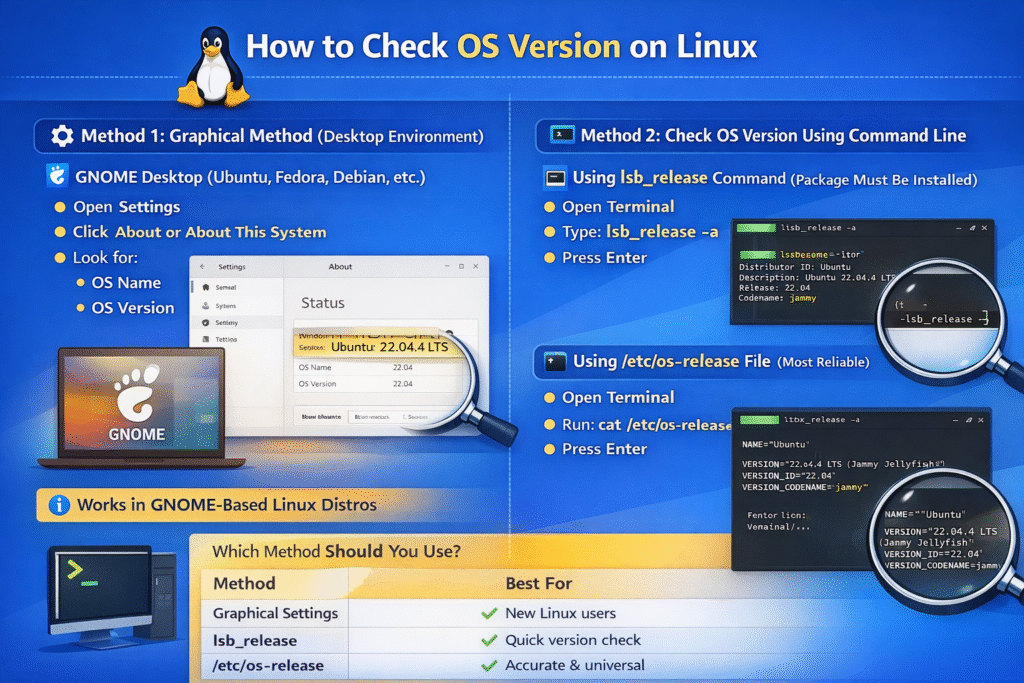
Linux (Ubuntu, Fedora, etc.)
Graphical method (varies by desktop environment)
Command line
Why Checking OS Version Is Important
Conclusion
You can quickly check your computer OS version using built-in settings on Windows or Mac. Knowing your OS version ensures your system runs smoothly and supports the latest applications