
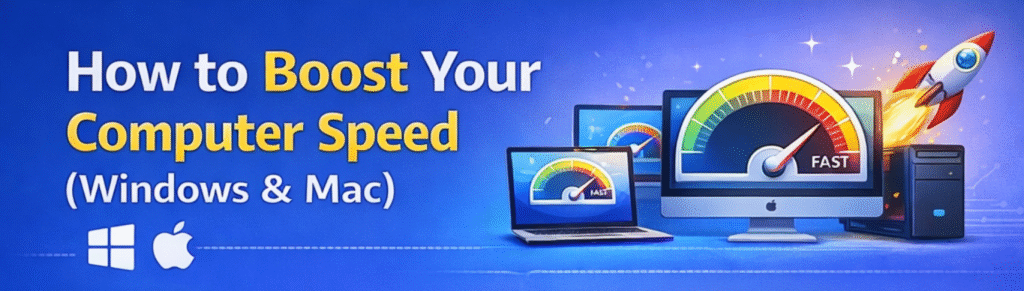
How to Boost Your Computer Speed (Windows & Mac)
Windows OS Speed Up Settings
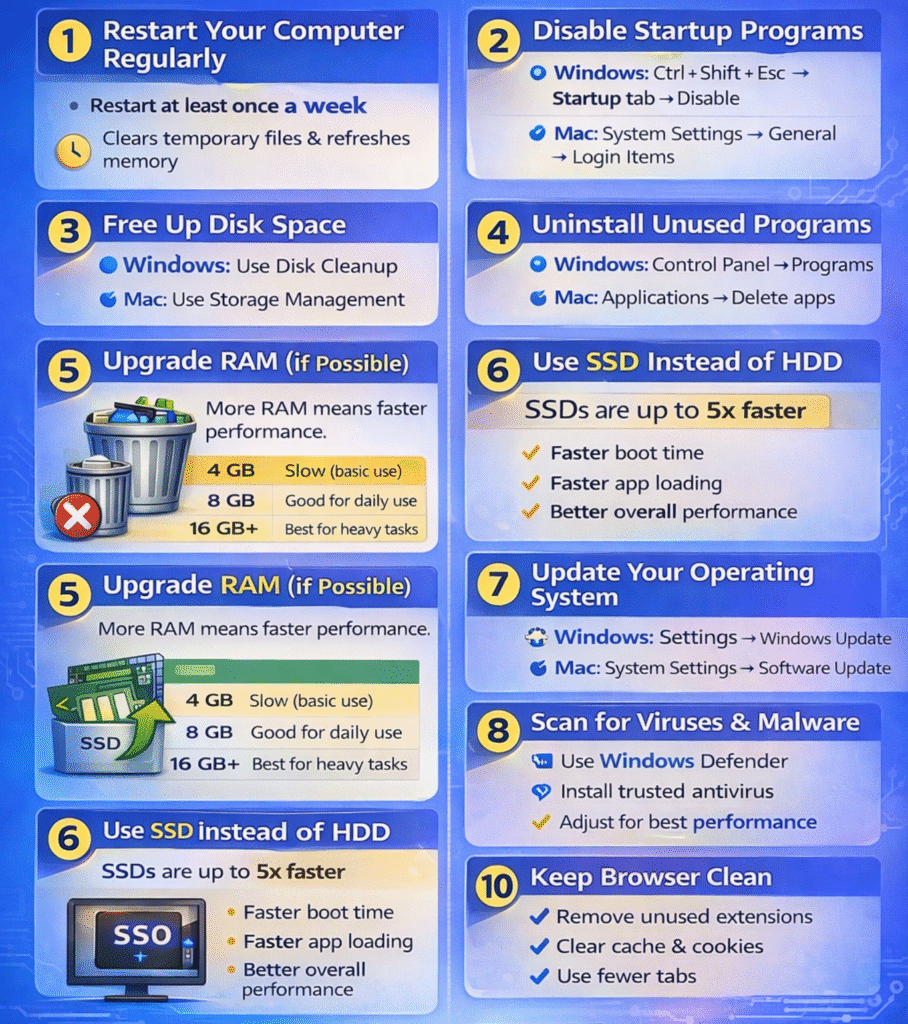
Setting 1: Restart or Disk CleanUp Your Computer Regularly
Restarting clears temporary files, refreshes system memory, and stops background processes that slow down performance.
Step 1: Open Disk Cleanup
- Click the Start Menu
- Type Disk Cleanup
- Press Enter
- Choose the drive you want to clean (usually C: Drive)
- Click OK
- Windows will scan the drive and calculate how much space can be freed.
Check the boxes for files you want to remove, such as:
- Temporary files
- Recycle Bin
- Thumbnails
- Downloaded Program Files
- Temporary Internet Files
- Click OK
- Click Delete Files to confirm
Windows will now remove the selected files.
Benefits of Disk Cleanup
Setting 2 : Disable Startup Programs
Too many startup apps can slow down boot time.
On Windows:
- Press Ctrl + Shift + Esc
- Open Startup tab
- Disable unnecessary apps
- Go to System Settings → General
- Click Login Items
- Disable unnecessary apps
Setting 3: Uninstall Unused Programs
Replacing a traditional hard drive with an SSD can make your computer up to 5x faster.
Benefits:
Setting 4: Use SSD Instead of HDD
- Click Apple () → System Settings
- Go to General
- Click About
- View macOS version details
Setting 5: Reduce Visual Effects (Windows)
- Press Windows + R
- Type sysdm.cpl
- Go to Advanced → Performance
- Select Adjust for best performance
Setting 6: Upgrade RAM (If Possible)
Increasing RAM significantly improves multitasking and speed.
| RAM | Performance |
|---|---|
| 4 GB | Slow (basic use) |
| 8 GB | Good for daily use |
| 16 GB+ | Best for heavy tasks |
Setting 7: Scan for Viruses & Malware
Setting 8: Keep Browser Clean
Conclusion
Boosting your computer speed doesn’t always require buying a new device. By cleaning up storage, managing startup apps, updating software, and upgrading hardware like RAM or SSD, you can significantly improve performance.